
DitherMaster Studio / Direct download
Opening your direct download
The direct-download version displays a security warning on Windows and macOS. A warning about an unrecognized app or an unverified developer is not the same as a malware detection, and it does not prove a download is safe. Only continue if you trust the source and received the file through your official DitherMaster purchase.
Why do I see a security warning?
I’m an indie developer, and the direct-download version isn’t recognised by Windows SmartScreen or verified by Apple. Your system may therefore show a warning before opening it.
These instructions apply to the Direct Purchase download. Installing through Steam or the Mac App Store normally avoids these additional security-warning steps.
Windows
- Open the file you received through your official purchase.
- If Microsoft Defender SmartScreen shows Windows protected your PC because the app is unrecognized, select More info.
- Check that the app is the file you intended to open. If you trust the download and Run anyway is offered, select it to continue.
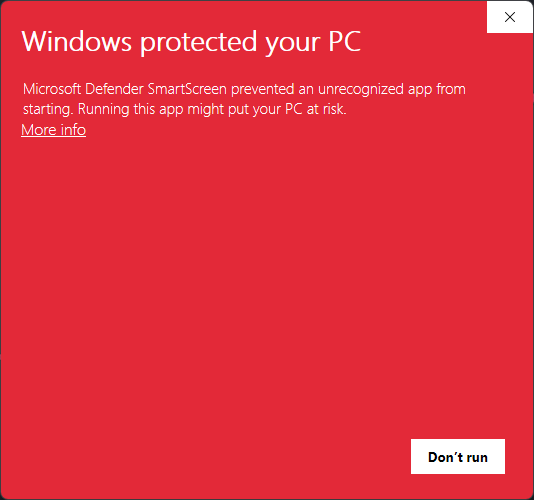
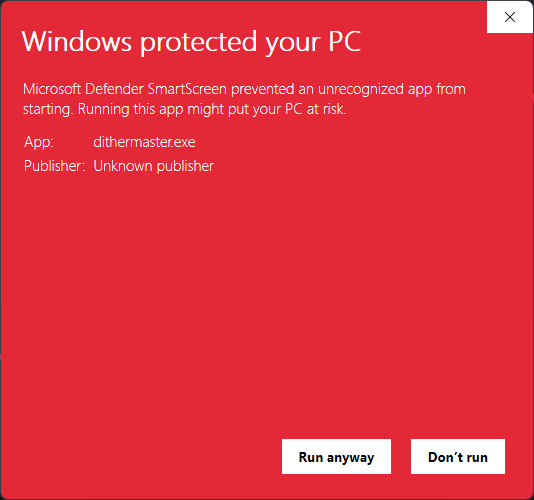
If the warning reports malware, or there is no option to continue, stop and contact support. Do not disable Microsoft Defender, SmartScreen or other security software. A work or school computer may have restrictions that only its administrator can change.
macOS
- Try opening the app you received through your official purchase. Dismiss the warning if macOS cannot verify the developer or check the app for malicious software.
- Open System Settings → Privacy & Security. Look for the message about the app being blocked.
- If you trust the download and Open Anyway is offered, select it. Authenticate if asked, then confirm Open in the next dialog.
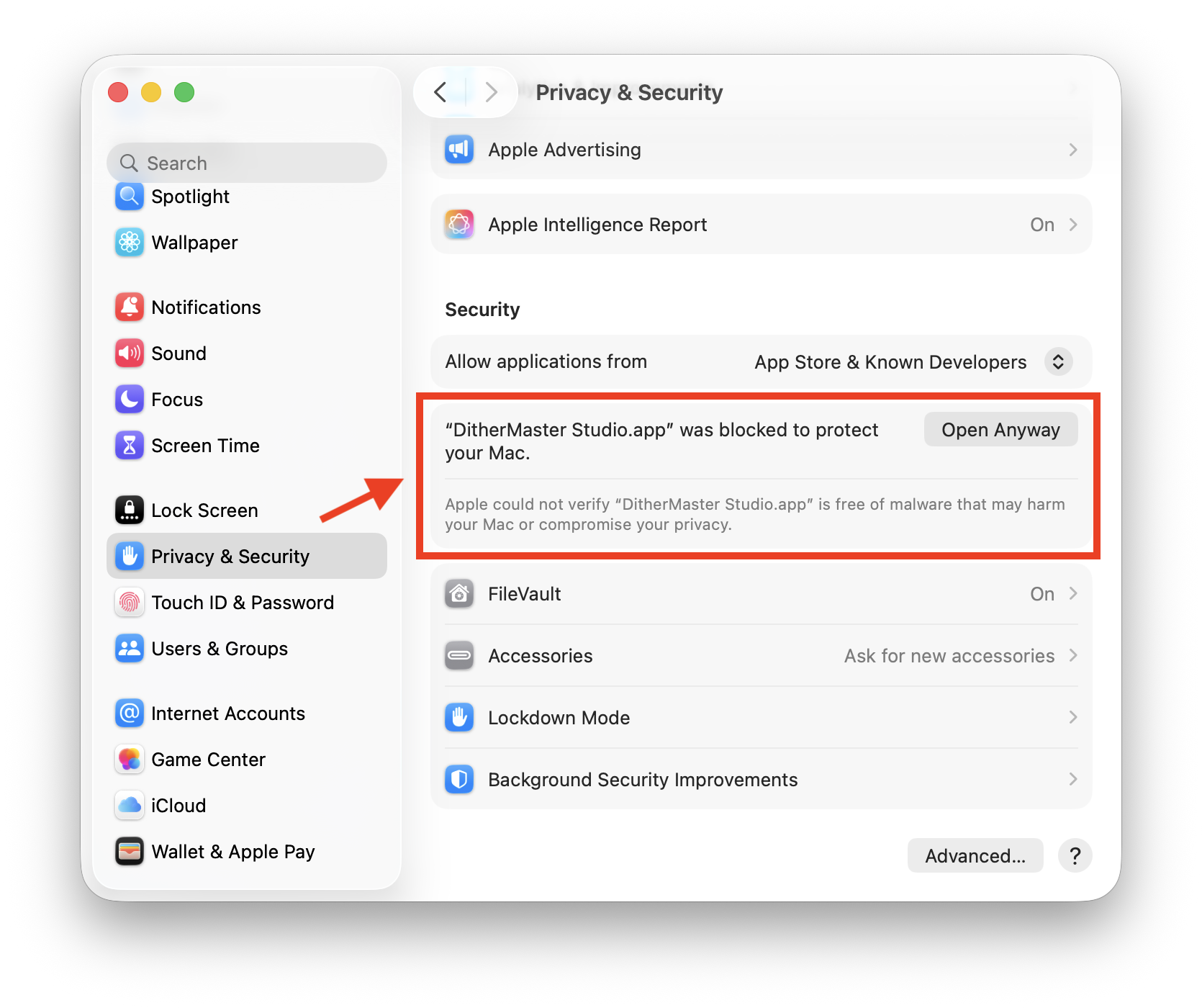
The wording and available options depend on your macOS version and device policy. If macOS reports that the app contains malware, will damage your computer or is damaged, stop and contact support rather than bypassing the warning. Do not disable Gatekeeper or remove quarantine protections with Terminal commands.
For Apple's current instructions, see Safely open apps on your Mac.
Activate your license
You’ll receive a license key with your Direct Purchase. Keys start with DITHER-, for example DITHER-ABC.... Use your complete key, not this abbreviated example.
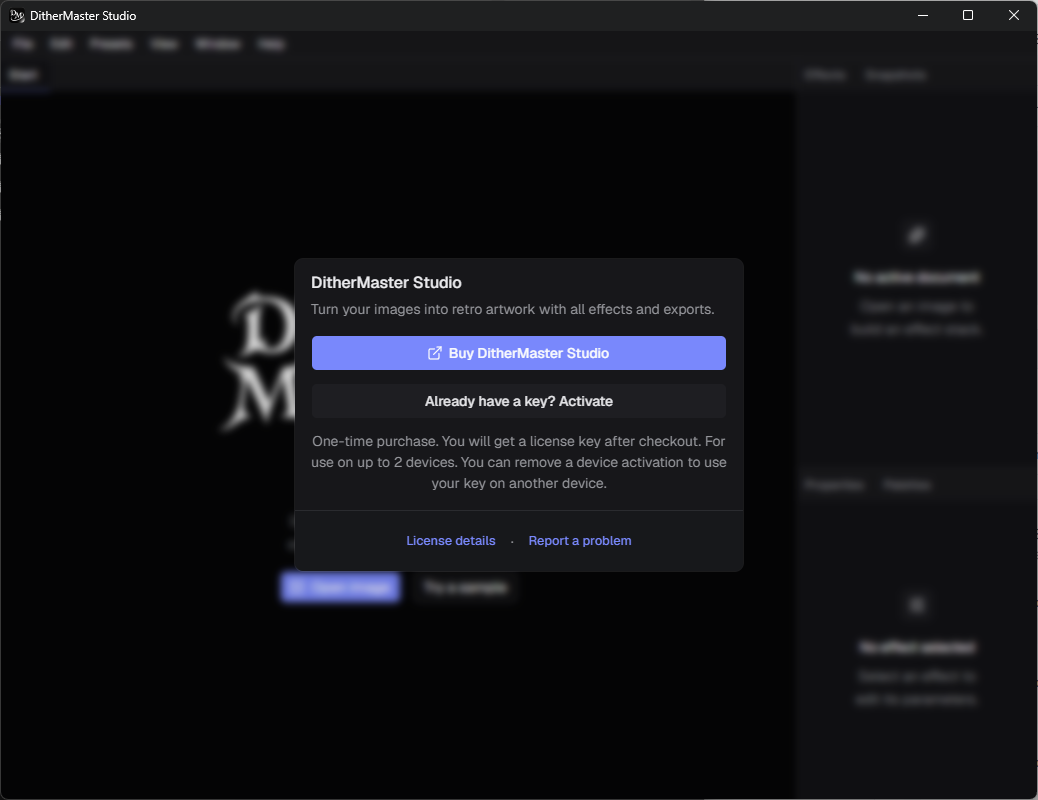
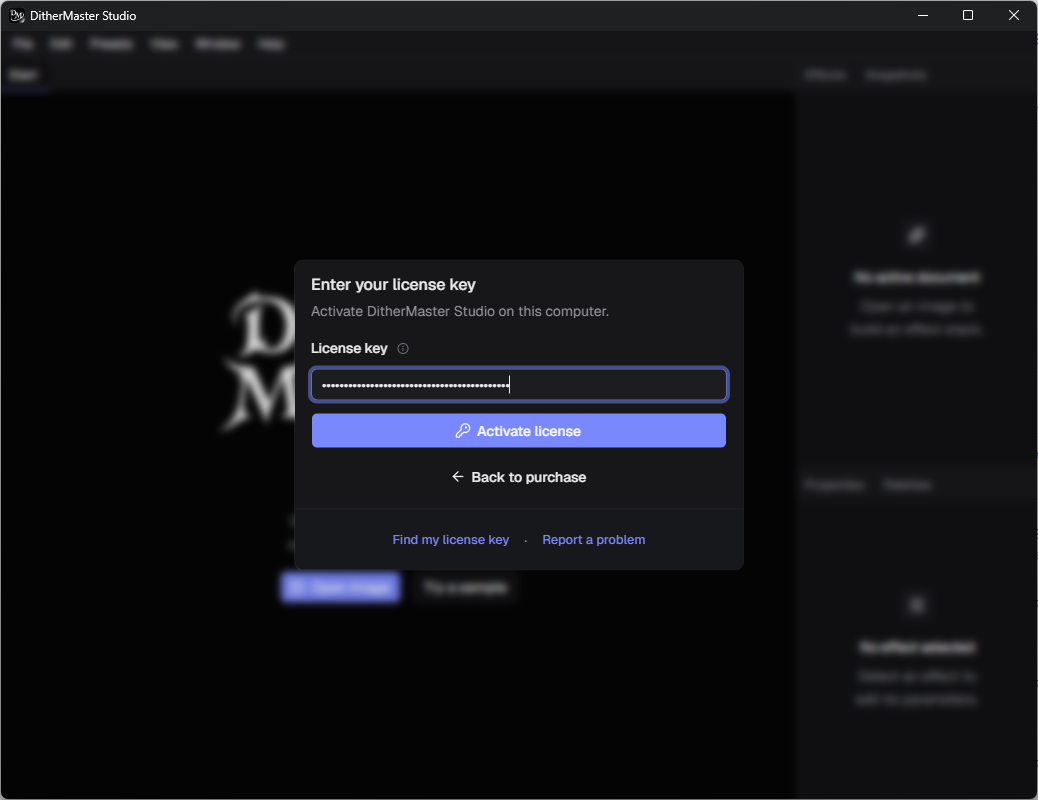
- Open DitherMaster Studio and select Already have a key? Activate.
- Paste your full key into the License key field, then select Activate license.
Access your purchase anytime
You can access your purchase and its benefits anytime. Open the Polar customer portal and enter the email address you used for your purchase.
Need help?
Email info@gravehammer.com with your operating system version and the exact warning text. Do not send passwords or payment-card details.
The direct-download version does not update automatically. Direct buyers are eligible for a free Steam key if they want to switch to Steam later. See the Steam key FAQ for how to request it.